 By
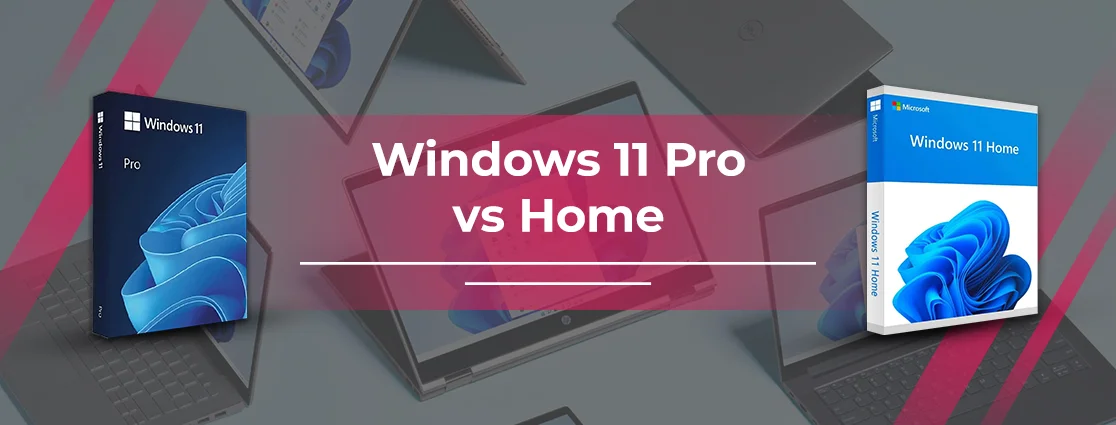
By Launched on October 5, 2021, Windows 11 Home and Pro versions were a transformative upgrade from Windows 10 operating systems. While the Home version is kept for normal users, where casual tasks are performed, the Pro is for advanced usage, particularly managing more complex tasks, and thus used mostly by IT professionals. Many users may find it difficult to differentiate between the two. If you’re among users who go and search Windows 11 Pro vs Home on the search bar but still are not able to get it, this blog has covered you all!
Quick Overview
- Windows 11 Home comes mostly with newly purchased computers.
- If you’re a normal user who browses, plays games, and manages little bit tasks, Windows 11 Home is enough.
- A Pro version is for advanced business management, used to handle complex tasks.
- Users can upgrade from the Home version to Pro through Microsoft Store settings and by purchasing a product key.
What Is Windows 11 Home?
Windows 11 Home is an operating system of Microsoft Windows 11 that normally comes with the latest computers. This popular version is mostly designed for normal tasks, and thus, is mostly for home users. You can perform basic tasks on this – from running applications to managing files, and browsing the web. It comes with the latest security feature called Windows Hello, AI features like Copilot, and productivity tools like Snap Layouts. You may face difficulties in performing business tasks, but it’s ideally good for the normal day-to-day tasks.
What Is Windows 11 Pro?
When you go one level up, Windows 11 Pro is there. This is considered the advanced version of Windows Home and is capable of handling more complex tasks. Its integrated enhanced security features protect you from bugs and threats, and the advanced management features handle the task much more easily. With Windows 11 Pro comes the BitLocker drive encryption, remote desktop, business domain and Hyper-V for virtualization.
Clearly, Windows 11 Pro is for more complex tasks, where the latest technology, security, and advanced management tools are required. Therefore, business users, IT professionals, and those who use their computer for harder tasks are most likely to select this.
Windows 11 Home vs Pro: Feature Comparison
A clear comparison between Windows 11 Home and Pro is here:
| Key Features | Windows 11 Home | Windows 11 Pro |
| Who Is This For? | Normal Users with low task performance, such as browsing, app running, etc. | Advanced users with more complex tasks, like managing the whole lot of tasks, streaming live, and doing more. |
| Remote Desktop | Not available | Yes, it’s available to remote from Windows 11 Pro. |
| BitLocker full drive encryption | Not available, only basic device encryption is possible. | Yes, available with user control. |
| Hyper-V virtual machines | Not available | Available to create and run VMs. |
| Windows Sandbox (safe test environment) | Not available | Yes, it’s available. |
| Azure AD | No | Yes, available to join office or domain network |
| Group policy | No | Group Policy Editor. |
| Windows update for Business | No | Yes, you can get notified about |
| Maximum RAM Support | 128 GB | 2 TB |
| CPU Cores limit | 64 cores | 128 cores |
| Price | Mostly on the cheaper side | More expensive than Windows 11 Home. |
Core Hardware Differences Between Windows 11 Pro and Home
The hardware difference between Windows 11 Home and Pro is presented here.
| Hardware Feature | Windows 11 Home | Windows 11 Pro |
| Max Physical CPUs | 1 | 2 |
| Max CPU Cores | 64 | 128 |
| Max RAM | 128 GB | 2 TB |
Gaming: Windows 11 Home vs Pro
Discover how gaming can be performed on each of the Operating systems, and which one you should opt for.
| Features For Efficient Game | Windows 11 Home | Windows 11 Pro | Gaming Benefit (Pro vs Home) |
| Hyper-V Virtualization | ❌ Not available | ✅ Yes (full Hyper-V support) | Run game VMs, test OSes, or isolate game environments |
| BitLocker Encryption | ❌ Limited (basic device encryption only) | ✅ Yes (full drive encryption control) | Secure large game libraries, saves, and mods |
| Remote Desktop Host | ❌ No (client only) | ✅ Yes (host + client) | Stream games remotely to phones/tablets/other PCs |
| Higher RAM/CPU Limits | 128 GB RAM / 64 cores / 1 socket | 2 TB RAM / 128 cores / 2 sockets | Extreme multitasking (streaming + VMs + games) |
| Game Compatibility | ✅ All games (Steam, Epic, Xbox Game Pass, etc.) | ✅ All games (identical support) | No difference—every game works equally |
| AAA Titles (e.g., Cyberpunk 2077, Forza Horizon 5) | ✅ Full support (DirectX 12 Ultimate, ray tracing) | ✅ Full support (same as Home) | Identical FPS/load times |
| Esports/Competitive (e.g., Valorant, Fortnite, CS2) | ✅ Full support (low latency, Game Mode) | ✅ Full support (same as Home) | No FPS advantage |
| Older Games (DirectX 9/11 titles) | ✅ Full support (Auto HDR upgrades visuals) | ✅ Full support (same as Home) | Identical compatibility |
| Cloud/Streaming Games (Xbox Cloud Gaming) | ✅ Full Xbox app integration | ✅ Full Xbox app integration | No difference |
Note: Nothing visible as such comes to your notice when you play games on either of the devices. It’s just the smoothness and better handling that Pro can provide.
Productivity: Which One Works Better?
Productivity is much better at both devices. All that matters is how complex tasks you manage on your device. Accordingly, you select. Although the Home version of Windows 11 is sufficient for managing casual tasks easily; however, you need Windows 11 Pro for comparatively big tasks, better management, and advanced features. Check below for more clarification.
| Productivity-Based Difference | Windows 11 Home | Windows 11 Pro | Winner & Why |
| Core Tools (Snap Layouts, Virtual Desktops, Copilot) | Full support | Full support | Tie – Identical |
| Multitasking (Office + Browser + Media) | Excellent (up to 128GB RAM limit) | Excellent + higher limits (2TB RAM) | Pro – For heavy workloads |
| Security (File Encryption) | Basic device encryption only | BitLocker full control | Pro – Protects work docs |
| Virtualization (Test Apps/VMs) | No Hyper-V or Sandbox | Hyper-V + Windows Sandbox | Pro – Developers/IT |
| Remote Work (Access PC from Anywhere) | Client only | Remote Desktop Host | Pro – Hybrid workers |
| Update Control (Avoid Disruptions) | Automatic updates | Defer up to 365 days | Pro – Business stability |
| Domain/Business Integration | No Azure AD or Group Policy | Full enterprise tools | Pro – Teams/corporate |
| Performance/Battery | Slightly better (fewer services) | Negligible difference on modern hardware | Home – Lighter |
Price Comparison
The price difference between Windows 11 Home and Pro is subtle. You will notice the difference lies in the location where you buy it. Generally, the price varies, and the Pro version costs 30 to 50% more. Check below for full information:
| License Type / Region | Windows 11 Home | Windows 11 Pro | Price Difference |
| US Retail (MSRP) | $139 | $199 | +$60 (43%) |
| UK Retail | £119 | £219 | +£100 (84%) |
| EU Retail (Germany) | €145 | €209 | +€64 (44%) |
| Australia Retail | A$229 | A$329 | +A$100 (44%) |
| Canada Retail | C$159 | C$229 | +C$70 (44%) |
| OEM/Discount Sellers (Global) | $25-$40 | $30-$60 | +$5-$20 (minimal) |
| Upgrade (Home → Pro) | N/A | $99 / £99 / €109 | One-time fee |
How To Upgrade From Home To Pro
Switching from Windows 11 Home to the Pro version is possible through the given process. There are two ways through which you can do so – one is upgrading directly through the Microsoft Store, and the second is activating it through a Product key.
Through Microsoft Store:
- Turn on your PC.
- Open Microsoft store: Visit settings > system > activation > then click ‘Open Store.’
- Now, follow the on-screen instructions and complete the upgrade.
- After completing the purchase, install the latest version.
- Restart your PC to use it well.
Through Product Key:
You can use the product key to upgrade to Windows 11 Pro. To do so,
- Visit the Settings of your PC.
- Tap system > activation.
- Choose the ‘Change product key’ option.
- Enter the Windows 11 Pro key, which is 25 characters long.
- Tap ‘Next’ to upgrade.
- Your PC will reload, indicating that it’s now ready.
Who Should Choose Windows 11 Home & Pro?
The selection of Windows 11 Home and Pro depends on an individual’s interests. If there’s a demand for maintaining high-end tasks and more professional works, then the Pro version will be the best choice. Otherwise, for normal day work, Home is more than enough.
The Pro version handles difficult tasks, while the Home version tackles casual work easily.
Final Verdict
Windows 11 Pro vs Home: This guide has presented the clear differentiation between the two. While Windows 11 Home version is ideal for day-to-day tasks, browsing, and a little bit of gaming as well, the Pro version is specifically designed for advanced tasks. It’s because of BitLocker encryption and Hyper-V virtualization, Remote Desktop, and advanced hardware support of up to 2 TB of RAM. Moreover, the method to upgrade from non-pro to pro version is provided for the benefit of the users. Hope this helps you with Windows’ concerns.
Frequently Asked Questions
Is Windows 11 Pro faster than Home?
You may not notice the higher speed in Windows 11 Pro as such, as both work on the same hardware, but you may notice Windows 11 Pro performing better in certain heavy scenarios due to the support of 2TB of RAM.
Is Windows 11 Pro worth buying?
Upgrading to Windows 11 Pro is worth it if you’re dealing with challenging and high-end professional work daily, including virtual meetings, heavy team management, and so on. Otherwise, Windows 11 Home is quite sufficient for normal day-to-day tasks.
Can I transfer my license from Home to Pro?
Yes, you can transfer a license or upgrade to Pro just by activating the product key. All you need is to purchase the activation key and then enter it into the activation section. That’s it!
Does Windows 11 Home have BitLocker?
No, Windows 11 Home does not have BitLocker. It’s only available for Pro users.
Which version is better for programming?
No doubt, Windows 11 Pro is better for programming. It is because of the advanced features like Hyper-V virtualisation, Remote Desktop server capability, and Group Policy.
Can gamers benefit from Windows 11 Pro?
It’s not like this. In fact, the users will have a similar kind of experience due to the availability of Auto HDR, DirectStorage, and Game Mode.
REFERENCES:
https://www.microsoft.com/en-us/windows/compare-windows-11-home-vs-pro-versions